Setup Coach
Set up your kid's phone and apps one step at a time, with each step telling you which phone to hold.
The free checklist tells you what to set. Setup Coach walks you through it one step at a time, on your phone and your kid's. You get the menu labels from each company's help pages, which phone to hold, and what to try when a menu has moved.
$19 once
$19 once, tax included.
$19 once, for every kid in the family. It is never priced per child. The settings checklist stays free. Setup Coach is the walkthrough, plus an email when a verified setting changes, for 12 months.
Secure checkout by Stripe. It unlocks in the browser you pay in, so buy it in the browser you'll use for setup. If you came from an app like Instagram or Facebook, open raisingbytes.com/setup in Safari or Chrome first.
Your card statement shows the charge under the name on your receipt.
The $19 price includes any sales tax.
Walkthroughs for iPhone and iPad, Android (with Google Family Link), YouTube, Roblox, TikTok, Snapchat, Instagram and Fortnite.
Made by Miles Martin, a dad of three who works in cybersecurity. Every step is checked against the company's own help page.
Is this for you?
It might be, if:
- You opened Settings, saw five menus, and closed it again.
- A new phone is coming, and you want it set up before it's handed over.
- You have more than one kid, and you'd like to do this once, properly.
Happy working from the free checklist? Keep using it. It stays free.
What's inside: 8 walkthroughs
Pick your kid's phone and apps. Setup Coach shows only the walkthroughs you need.
| Walkthrough | What it walks you through | Your first kid (our estimate) |
|---|---|---|
| iPhone and iPad | Family Sharing and a Child Account, a Screen Time passcode, age ratings, App Store limits, Ask to Buy, website filters, Allowed Contacts, Communication Safety, schedules and time allowances, location sharing, and locking those settings. Then you test it. | 60–90 min |
| Android (with Google Family Link) | Your kid's Google Account, download and purchase approval, Play ratings, a daily limit, Downtime and School time, Chrome filters, SafeSearch, location, who they can call and text, app permissions, and your Parent access code. Then you test it. | 60–90 min, plus about 15 if you're creating a new Google Account |
| YouTube | A YouTube Kids profile with your own passcode, the content level, a timer, autoplay, a supervised account or teen supervision, and a Parent code on the TV. | 25–40 min for one path and one TV |
| Roblox | Linking your parent account, content maturity, blocking games, each type of chat, private servers, the friends list, a spending limit and alerts, the Xbox and PlayStation 5 spending steps, and a daily time limit. | 45–60 min, plus about 5 per console |
| TikTok | Family Pairing, daily screen time, time away, muted notifications, Restricted Mode, word and hashtag filters, search, privacy, comments, direct messages (16–17 only), and alerts if the link changes. | 20–35 min |
| Snapchat | Family Center, sensitive content, My AI replies, location sharing and place alerts, the friends list, and purchase approval through Apple or Google. | 15–20 min if you use Snapchat, 20–30 if you're new to it |
| Following your teen, the supervision invite, approvals, a daily limit, Sleep mode, the content setting, who they talk to, and purchase approval. | 25–40 min | |
| Fortnite | Epic's parental controls and PIN, voice and text chat, the mature-language filter, friend requests, Epic payments, paid random items, console spending (Xbox, PlayStation, Switch), content ratings, and play time. | 40–60 min, plus your console |
Extra kids go faster. The family setup is already done.
How it works
- Tell it about each kid. A nickname or initial (optional), birth month and year, their phone and their apps. Steps that don't fit their age stay hidden.
- One step per screen. Each step says where it happens: On YOUR phone or On your KID's phone (a few steps happen on the TV, a console or a computer). When it's time to swap, it tells you: "Next step is on your kid's phone. Hand it over, then tap I've switched."
- Stuck? Tap "I don't see that setting." You'll see what your screen might say instead, and what to try next.
- Skip what doesn't fit. Tap "It's OK to skip this one." Skipped steps are listed at the end, so nothing gets lost.
- Know when you're done. Each walkthrough ends with a "You're done when" list. The phone walkthroughs finish with a quick test on your kid's phone.
Your progress is saved in that browser, so you can stop and pick it up later. For 12 months, you get an email when a verified setting changes. Change alerts start with our first verified alert. Your 12 months start then, or on the day you buy or redeem a code if that's later.
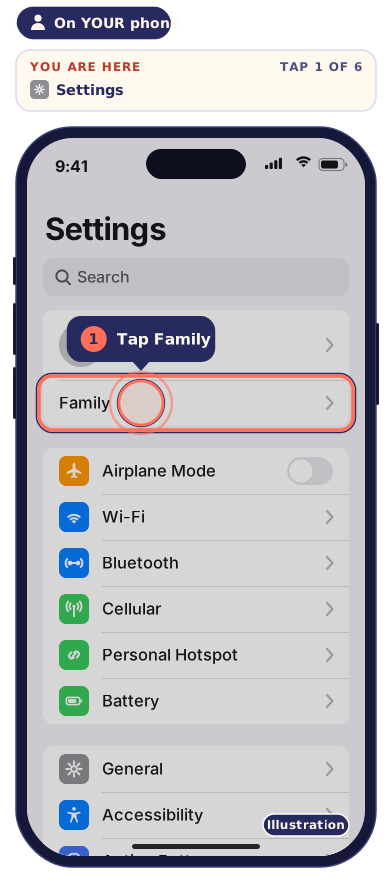
Here's one real step
On YOUR phone
Turn on Ask to Buy
Before you tap: your name must be in your child's contacts, or requests won't reach you.
Settings → Family → your child's name → Apps & Websites → Restrictions → Ask to Buy → turn on Require Purchase Approval.
What should happen: app downloads, in-app purchases and redownloads of shared apps send you a request in Messages. That includes free apps.
I don't see that setting: Ask to Buy is on by default for kids under 13 with a Child Account in Family Sharing. Check it's on anyway.
Source: Apple Support, Set up parental controls (support.apple.com/105121) · Checked Oct 2026
How long it takes
Plan on 60–90 minutes for the phone itself with your first kid, on iPhone or Android (with Google Family Link). Updates and making accounts are the slow parts. Each app adds about 15 to 60 minutes (plus console time for Roblox and Fortnite). Extra kids go faster.
You don't have to do it in one sitting. Do the phone one night and the apps another.
These are our estimates, not timed tests.
Free vs Setup Coach
| Free | Setup Coach | |
|---|---|---|
| What you get | A checklist of what to set | The same settings, one step at a time, on your phone and your kid's |
| Menus | You find them | The exact menu labels, and which phone to hold |
| If a menu moved | You hunt for it | Tap "I don't see that setting" for what to try |
| Later | You remember to recheck | 12 months of an email when a verified setting changes |
| Printables | Agreement and scripts on the site | Agreement poster, sitter sheet, fridge card, and scripts included |
Included printables: Agreement poster · Sitter sheet · Fridge card · Scripts for the hard talks
Who made this

I'm Miles Martin, a dad of three who works in cybersecurity.
I built Raising Bytes because so many parents end up blocking everything. Not because they want to, but because nobody ever showed them how to set things up. I want kids to enjoy their apps and games with their friends, with the right settings on.
The checklist is the free part. Setup Coach is me walking you through it, step by step, on your phone and your kid's. Every step is checked against the company's own help page, and each one shows when we last checked it.
Miles
The offer
$19 once
$19 once, tax included.
$19 once, for every kid in the family. It is never priced per child. The settings checklist stays free. Setup Coach is the walkthrough, plus an email when a verified setting changes, for 12 months.
When your 12 months of change alerts end, you can renew them for $15 a year (renewals open later). Nothing renews automatically.
Your card statement shows the charge under the name on your receipt.
Full refund within 30 days of purchase, no questions asked. Just email hello@raisingbytes.com from the email you used at checkout. Refund policy
Questions parents ask
Which phones and apps does it cover?
iPhone and iPad, Android (with Google Family Link), YouTube, Roblox, TikTok, Snapchat, Instagram and Fortnite. That's 8 walkthroughs. Consoles show up only where a game needs them: Roblox and Fortnite include the console spending steps. Setting up a console's own family group isn't covered.
Is it a subscription?
No. When your 12 months of change alerts end, you can renew them for $15 a year (renewals open later). Nothing renews automatically.
Do I pay per kid?
No. It's $19 once, for every kid in the family. It is never priced per child.
Do I need my kid's phone with me?
Yes, for some steps. Some happen on your phone, and some happen on theirs. Each step says which device to use, and it tells you when to swap.
What do I open it on?
The phone or computer you'll use for setup. Secure checkout by Stripe. It unlocks in the browser you pay in, so buy it in the browser you'll use for setup. If you came from an app like Instagram or Facebook, open raisingbytes.com/setup in Safari or Chrome first.
What if my screen doesn't match?
Tap "I don't see that setting." It shows what your screen might say instead and what to try. If a step doesn't fit your family, skip it. Skipped steps are listed at the end.
What do you need to know about my kid?
A nickname or initial (optional; leave it blank and emails say "your child"), and a birth month and year, not a full birthday. That's how the steps match their age. If you want the setting-change emails, those details are saved with your checkout email. You can delete them from Setup Coach at any time, and the emails stop.
Will this keep my kid out of trouble online?
No setting can promise that. Each device's controls cover that device only, filters miss things, and kids find workarounds. Setup Coach helps you get the settings right. Telling your kid what you turned on, and why, does the rest.
Refunds
Full refund within 30 days of purchase, no questions asked. Just email hello@raisingbytes.com from the email you used at checkout.
Already bought?
Open raisingbytes.com/setup in the same browser you paid in. Setup Coach opens on its own. There's no account and no password.
Already bought? Setup Coach unlocks in the browser you paid in. Private or Incognito windows forget it when you close them. On another phone or browser, or if you cleared your browser's data, open raisingbytes.com/kit/restore and type the email you used at checkout. We'll email you a link. Open it on the phone or browser you want to use, within 24 hours. No email after a few minutes? Check spam, then email hello@raisingbytes.com from the address you used at checkout.
Paid, but it didn't open? Write to hello@raisingbytes.com from the email you used at checkout and we'll sort it out.
Guidance, not a guarantee. Not affiliated with or endorsed by any of the companies named.
Your card statement shows the charge under the name on your receipt.